
I recently came across a disappearing act in D365. I had a rich text field on the form that end users expected to add images to (as above).
If users uploaded an image like the dog within the box (not dragged/dropped from a webpage as that will just store the URL not the actual image file) and saved the record, the image *poof* disappeared from the box as if it had never been added. No errors, no warnings, no dog.
Please Note: You will also have the same problem if you have a plain text/text area field (as opposed to the new rich text field options – see below) and have the Rich Text Editor control added on top of it.


I started digging around and found out that if you add an image into a rich text field, the system is actually using a secret little table in the background called, you’ll never guess, Rich Text Attachment. The tabel schema is msdyn_richtextfile. This table has a column/field within it called, gasp, Image Blob!

Don’t let the name fool you – this data is not stored in Azure Blob Storage, this is all stored in Dataverse so beware of the storage implications of having lots of big rich text fields for everyone to capture their life story. Note that the character limit might also need to be quite high as the system stores rich text – i.e. for the example above what is actually stored in the field within Dataverse is the following:
Scenario 1: File uploaded (Rich Text Attachment record is created)

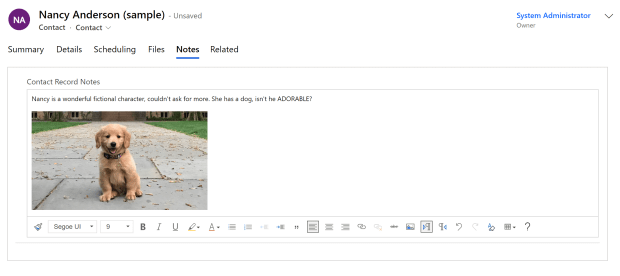
What gets stored in the field is the following:
(I do take slight offence to the loading being refered to as ‘lazy’!)<div style="font-size:9pt;font-family:'Segoe UI', 'Helvetica Neue', sans-serif;"><div>Nancy is a wonderful fictional character, couldn't ask for more. She has a dog, isn't he ADORABLE?</div> <div> </div> <div><img alt="" loading="lazy" src="/api/data/v9.0/msdyn_richtextfiles(56dbcf68-2c1a-ed11-b83e-000d3a381d58)/msdyn_imageblob/$value?size=full" style="height:186px;width:330px;"></div></div>
Scenario 2: Image drag/dropped from a website (Rich Text Attachment record is NOT created)
In this case the image will appear same as above, but the difference is in what gets stored…
Here is what we get in this scenario- notice that after ‘img alt’ we get aaaaaall the details in the world about this photo, where it came from and who its uncle is…
<div style="font-size:9pt;font-family:'Segoe UI', 'Helvetica Neue', sans-serif;"><div>Nancy is a wonderful fictional character, couldn't ask for more. She has a dog, isn't he ADORABLE?</div>
<div> </div>
<div><img alt="What is your dog's lifespan? A Princeton geneticist is seeking the keys to canine health and longevity." class="KAlRDb n3VNCb" id="imi" src="https://www.princeton.edu/sites/default/files/styles/half_2x/public/images/2
022/02/KOA_Nassau_2697x1517.jpg?itok=iQEwihUn" style="height:183px;margin:0;width:325px;"></div></div>Therefore consider the character limit of each different type of field. A ‘Single line of text’ or ‘Text area’ field has a limit of 4,000, a ‘Multiple lines of text’ field has a limit of 1,048,576 – that is quite the difference.
Here is the Fun Fact: if you want an end user to use rich text fields that save images, the user needs to have the relevant privileges based on the use case (create/read/write) to the Rich Text Attachment table, otherwise they will witness a disappearing act because they ain’t privileged. *Poof*. There goes another one. You have been warned.
If you are wondering what the Rich Text Attachment record that gets automatically created looks like, the image you add appears as the round profile image that you would also see on e.g. a Contact record:

The form is very minimal (as I imagine no one expects anyone to surface this in the UI) but there is a lot of information stored on there like the parent entity this attachment relates to and its ID – so lots of cool things live in there!
 Areti Iles