Managed Environments vs Environments that are Managed
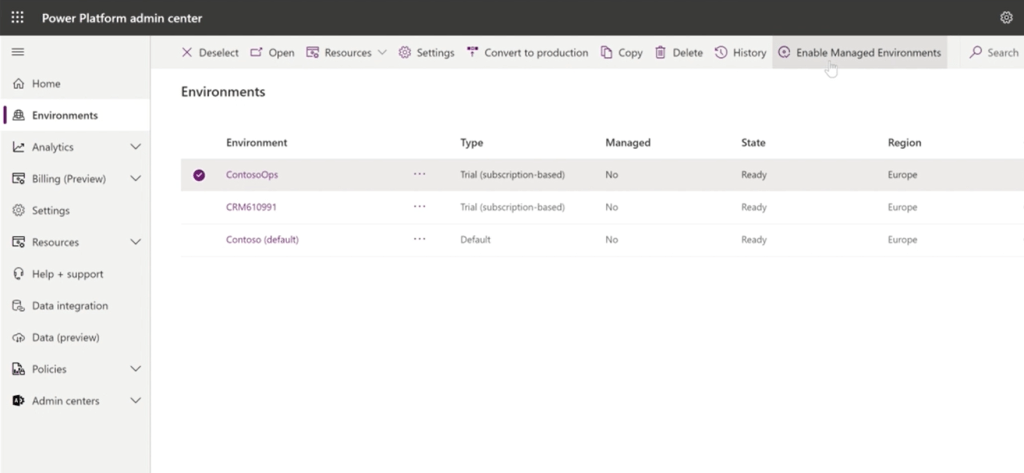
This is a fun one… I’m (probably?) late to the party on this one but I recently discovered that ‘managed environments’ are not the same thing as an environment that has managed solutions (as opposed to unmanaged solutions) in it. Colour me curious…

So it turns out that ‘Managed Environments is a suite of capabilities that allows admins to manage Power Platform at scale with more control, less effort, and more insights‘ – this definition is a bit vague so here’s a bit more information as to why ‘managed environments’ is not the same as environments that are managed (as in that have managed solutions). Enjoy…?

Environments that are Managed

Ok lets start with the easy stuff – before the whole ‘managed environments’ concept popped up, I would have referred to an environment that only contains managed solutions (E.g. Test/Production environments) as a ‘managed environment’ – as opposed to the Dev environment which only has unmanaged (editable) solutions in it so we can make changes, convert the unmanaged solution to managed (read only) and deploy the managed solution to the upward environments so no changes can be made to that solution’s components #changecontrol. Lovely. But then Microsoft decided to create the concept of ‘managed environments’ that is NOT that because… life just wasn’t complicated enough?

Managed Environments

So what are ‘managed environments’ then? In simple terms, you can ‘enable’ any environment to be ‘managed’ which will allow you to do the following for it (for more details see the official Microsoft documentation here):

  • Limit (i.e. introduce restrictions) on how canvas apps can be shared
  • Get Weekly usage insights (number of apps used, top makers, most popular apps/flows etc)
  • View Data policies (which data policies are applied to the environment)
  • Set up Power Platform pipelines (in preview)

For more indepth information on this check out the following links:

Power Platform Managed Environments – Dynamics 365 FastTrack Architecture Insights

Managed Environments For Easier Governance – Power CAT Live

So in summary

If someone says ‘it is a managed environment’ you now have to clarify which of the two they mean. Yeeeeeey.

Are you a (User) Groupie?

Here is a question: Do you work with Dynamics 365/Power Platform or anything else in the Microsoft stack? If yes, are you part of your local user group? If not, gasp! I strongly encourage you to join your nearest local one. Here’s the top 3 reasons why…

  1. Keep your knowledge up to date: User groups are free to attendees and have great speakers that cover topics allowing you to stay up to date with updates or product areas you don’t get to work with often. Find out what you don’t know and learn about it all in one go.
  2. Find a friend: It is good to talk to people that don’t work with you and that have the same/similar role in another company. There are so many people that can relate to your work pain and may have some helpful tips/advice.
  3. It’s fun: there are real people in the flesh, there is free food and welcoming user group leaders you can talk to about anything and everyone is from the local area more or less. The meetings themselves don’t take too much of your time (couple of hours every quarter or so), they are informal so you can actually relax and you can chat to people that work in the same industry with similar products. It’s fun to get your geek on!

Recently there has been a hashtag that emerged in user group or MVP related posts: #CommunityRocks – although this is a bit twee for my liking, it is true – it is a community and it does rock. Be part of it – everyone has a lot to contribute and can help others in the same journey a few steps behind them. You can be a speaker at user group events or start one if there isn’t a local one near you. Regardless of what you do or want to do, here is the thing – everyone will try to help you, they will all really want to say yes. All you have to do is ask.

How do I get started?

Are you in a user group?

Funny you should ask! Yes – there wasn’t a local one near me so I did the right thing and set one up with the help of the team that looks after all UK user groups (see second link above), who have been awesome! I look after the D365/Power Platform user group in Reading with two other amazing people (Fraser Dear and Tim Leung), so if you are local and fancy joining check out our upcoming events here!

The Solution Checker and Process Flows Trick

I have been using the solution checker before any deployment of a solution as we all diligently should. A lot of the time there will be nothing in the results because it’s all good, yey!

Other times, the solution checker will provide useful info on things to be updated to ensure best practice or get overly eager on the use of ‘strict’ in JavaScript. Fun times.

But recently I had a situation where the solution checker was not able to do the one job it is supposed to. I got a lovely ‘Couldn’t be completed’ message which I was surprised by because my solution didn’t have anything particularly amazing in it that could trip it up and in over a year in that environment it had always done its job diligently.

Like all clever people, I googled my problems – see ‘Common issues and resolutions for solution checker’ – but none of that really applied. After a lot of trial and error, I figured it out… it was the business process flow! Let me explain…

Say you have a solution that has a number of things in it including, as it happens, a business process flow. The below screenshot is a solution that only has a ‘Opportunity to Order Process’ business process flow but the argument still stands whatever else you might have in there (good for you!):

So lets say you go and run the solution checker:

You might think in this basic scenario there isn’t much for the solution checker to complain about, but actually it will fail after about 30 seconds of giving it a go:

Sad times. So what’s the problem?

Here’s the fun fact – it appears that the solution checker can only complete a business process flow check if the solution it is checking also contains the table for the business process flow(s) in the solution. Without it/them, the checker won’t be able to do its job and it will fail. The good news is once you add the table like below…

…and then run the solution checker again, all will be groovy and you can then go view the results (if the solution checker finds anything to complain about).

As with many of life’s mysteries, I am not sure why the checker really needs the table there or why it can’t tell me it’s missing things it needs but there you go!

Lookup Fields (Columns!) and Advanced Options – a Maker Portal Exclusive
The Power Platform maker portal is wonderful except for this little thing to do with lookup fields (columns!) and advanced options. For the purposes of my sanity I will continue to call them fields for this post. Sorry not sorry. Old habits die hard.

It appears that if you use the maker portal to create a lookup field in a solution (as indeed you should – if you are still using the old UI, we need to talk) then there is the small matter of the fact that by default, auditing for that field (and any other such settings) will be disabled. When creating a lookup field, the ‘Advanced Options’ section doesn’t show any options for auditing or field level security or anything else that appears for other fields:

Look at all that empty space…

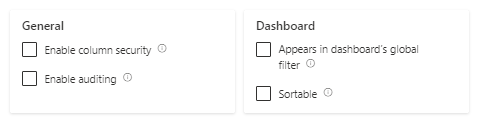
I don’t know why these options are not available when you are creating the field (if you do, let me know!) but effectively this means that if you create a lookup field in the maker portal and you want it to be audited or change any such groovy settings you need to create the field, save it then open it again as then the magical settings appear! Notice how they are all unticked…

Well I never!

So rememeber to do this, otherwise your auditing history will be short on lookup field action… Crazy stuff.

Field Deletions and Cloud Flows

We’ve all been there – we have created a field in D365, linked it to a bunch of things like forms and business rules and then we notice the schema has a typo, or we picked the wrong field type. Off we go to delete it and if it is still linked to anything else in the system (i.e. there are other components that use it and therefore depend on its existence), we get an error to tells us that we can’t delete it because the field has dependencies:

Off we go and remove the field from the forms/views/business rules etc it is linked to on the list of dependencies, we check they are all gone from the list and 0 dependencies exist and we DELETE. The system dutifully deletes it and it is history. Wonderful. Except…

Here’s the fun fact: It turns out the system isn’t checking for everything this field is being used in. It will allow you to delete a field even if it is used within a Power Automate flow. When it comes to Power Automate flows the system will only consider a cloud flow a dependency if the field being deleted is included in the triggers of that cloud flow. Otherwise (e.g. if the field is set/used in a step of the flow) the system doesn’t consider it a depency and you can delete the field.

Lets take an example where I have an ‘Employer’ lookup field on the Contact form that allows me to select the Account record of the company this person works for:

For reporting purposes I have a yes/no ‘Contact Records Associated’ flag on the Account form to let me know if an Account does or doesn’t have contacts associated to it:

I create a Power Automate flow on Contact creation (or when the ‘Employer’ field changes on the Contact) that updates the Account ‘Contact Records Associated’ flag to Yes:

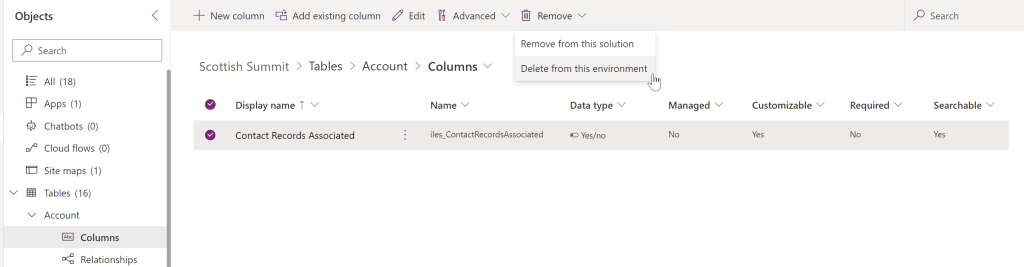
If I then look at the dependencies list of the ‘Contact Records Associated’ field, the cloud flow does not appear – only the form the field is on does and I can delete the field even though it is in a cloud flow step:

In contrast – if I create a flow that has the field as a trigger like the below…

Then the flow will appear in the depedencies list (and I can’t delete the field until I have removed it as a trigger):

So what happens to a flow that uses a field within a step when you delete it?

If you open it you will get a misleading message there is an issue with its trigger (but it is not the trigger that is the problem, its the step that is trying to set a deleted field):

Not all hope is lost though, because the flow will show you want it used to do with that field and which field it was starting with ‘item/‘ and then the field schema name:

You won’t be able to save the flow until (in this example) you clear the value that is being set for the deleted field, but once that is done and you refresh, this reference will disappear and you will have a happy flow.

How do you know which flows you need to go and fix if you are deleting a field since the dependencies list won’t tell you? See here for full details!